What is a calendar integration in XY Sense?
A calendar integration with XY Sense combines sensor occupancy and utilization data with scheduled booking data from your calendar application. XY Sense pulls in the scheduled meetings, mapped against spaces with sensors attached, and provides an Analytics dashboard comparing the actual utilization against the scheduled sessions.
Note that as with any analytics dashboard, the data provided is reliant on the types of sensors installed in each space.
The Space Booking Analytics dashboard can be made available within the Analytics section of XY Sense when the integration is activated. Your CSM will be able to assist with this request.
Pre-requisites
- Please ensure that you have this feature enabled by XY Sense prior to completing the below steps. You can contact support@xysense.com to request this
- XY Sense must be setup as an Application registered in Microsoft Entra ID
- Have ready the following details:
- Application/Client ID
- Directory/Tenant ID
- Secret
- Have ready the following details:
- User must access to XY Sense Application with 'Admin' permission
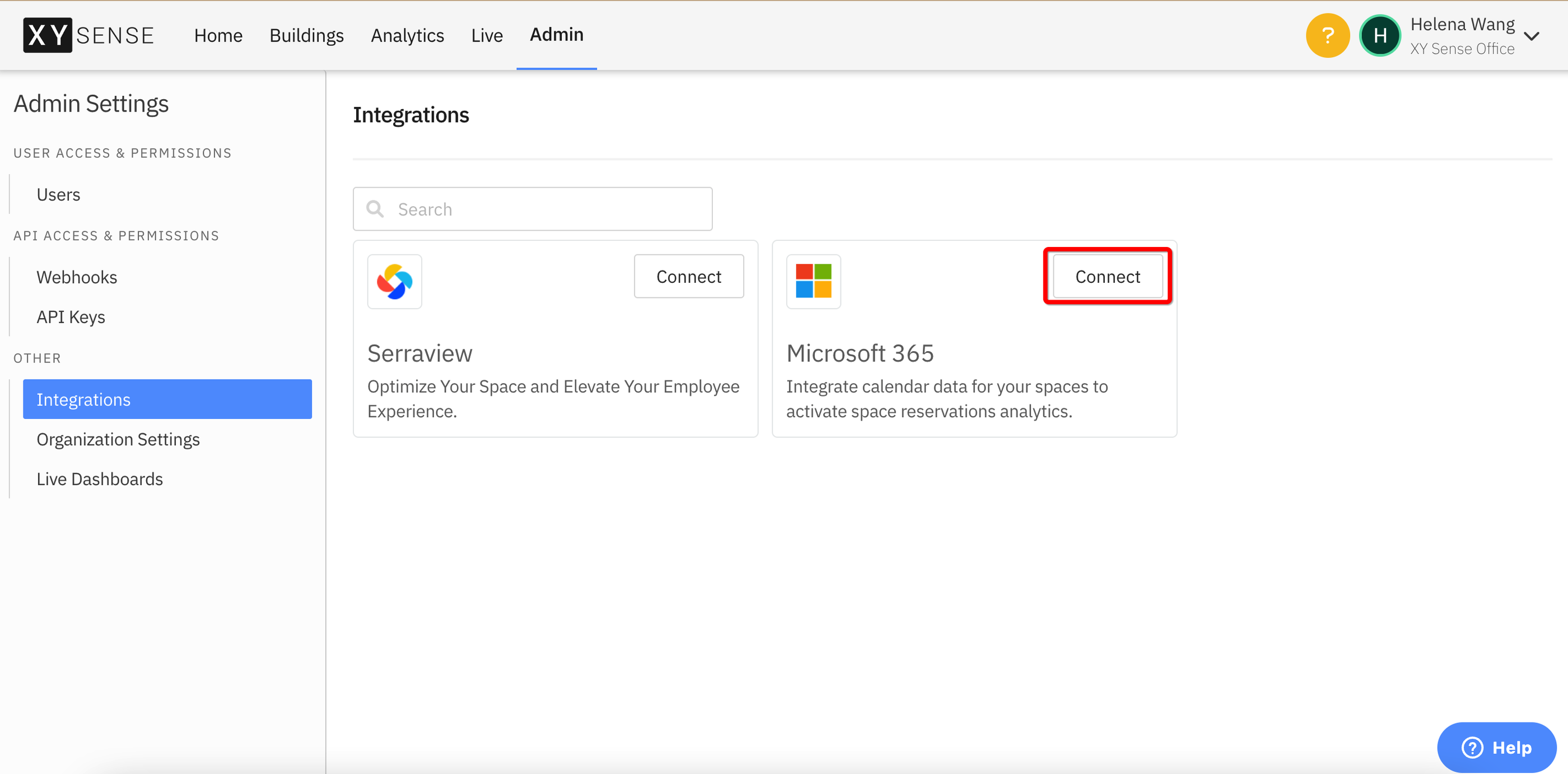
- Navigate to your Customer Instance of the XY Application. Go to Admin > Integrations. Click Connect on the Microsoft 365 Integration.
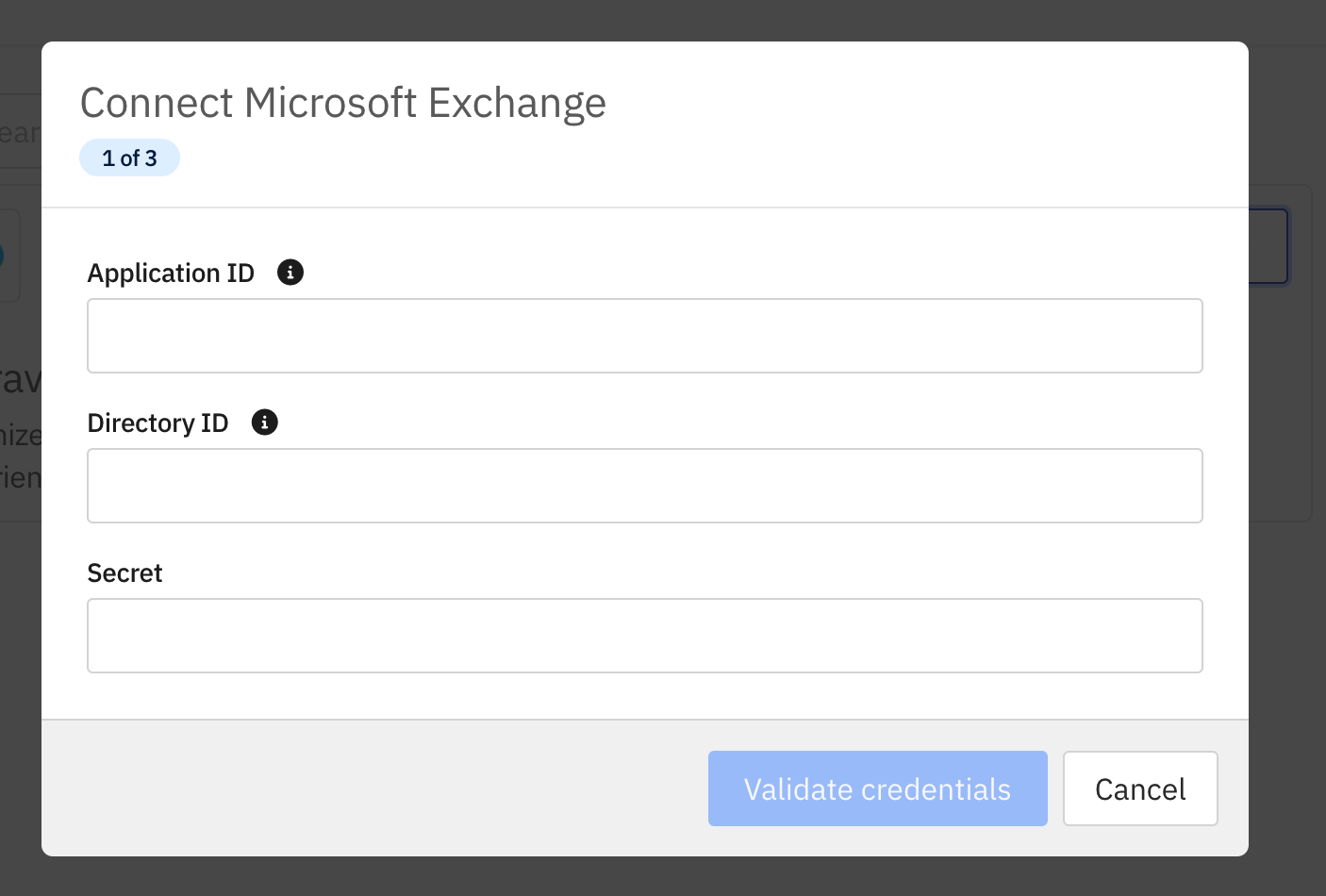
2.Populate Connection details - these can be obtained from Microsoft Entra ID (see below instructions). Click validate credentials
- the Application ID (also known as Client ID)
- Directory ID (also known as Tenant ID)
- Secret
Setup Application within Microsoft Entra ID
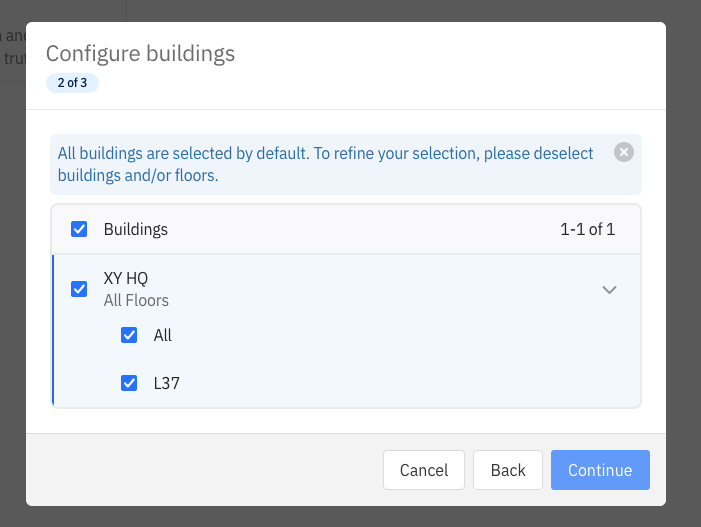
3.Select scope of buildings and floors to connect for Microsoft 365 Integration
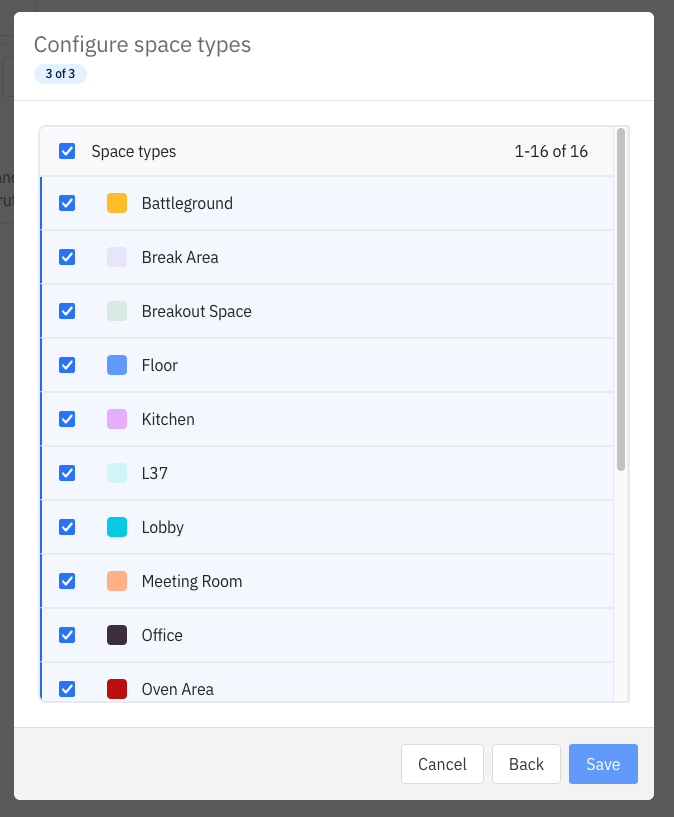
4.Select scope of space types for the integration, these will be bookable resources with mailboxes available to integrate for - typically meeting rooms. Click Save
5.Navigate to the Spaces tab and begin linking spaces to mailboxes. You can filter the page through the building/floor dropdowns and apply View by filters to streamline your process.
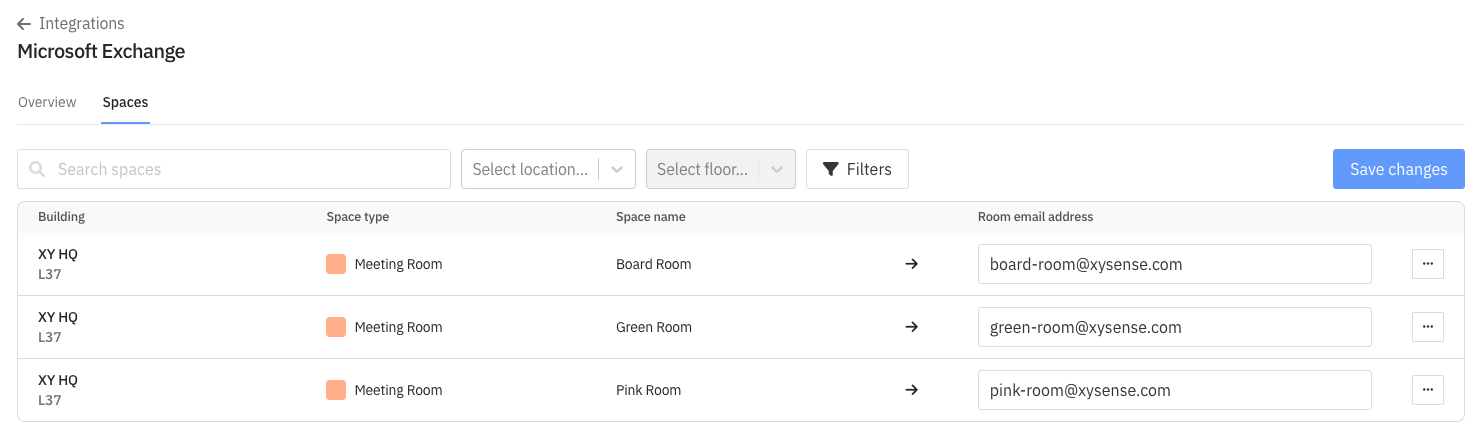
Note: Use the elipsis menu next to a space to 'Hide space' if this space does not have a mailbox to be assigned.
Backfill dates:
It is possible to request via support@xysense.com to backfill meeting information. You will need to clearly identify which date you'd like to start the backfill from eg. 3 months before today's date, and specify the specific date.
Comments
0 comments